Showing posts with label Mobile Tricks and Tips. Show all posts

Monday, December 9, 2013

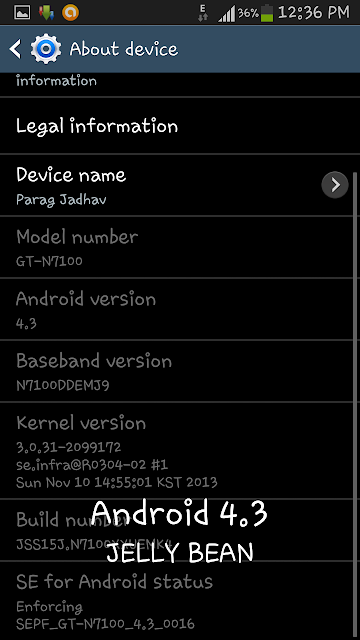
Samsung Galaxy Note II - What's New in Android 4.3 Jelly Bean?

It's been long time since Samsung update the Samsung Galaxy Note II (GT-N7100) to a new version of Android, Galaxy Note II launched with Android 4.1.2 Jelly Bean last year. Samsung diceded to skip Android 4.2.2 JB and go straight to Android 4.3 Jelly Bean.


The Android 4.3 Jelly Bean brings Restricted profile, Bluetooth LE support, It's brings along with it support for a Galaxy Gear SmartWatch, Samsung KNOX security suite and some icons change.

Samsung Galaxy Note II Android 4.3 Jelly Bean changes:

  • Capability with Galaxy Gear
  • Samsung KNOX security Suite
  • New Samsung Apps: Play Games, Samsung Link, Samsung Apps, G+ Photos, Group Play
  • Change Icon: Calculator, Clock, Camera, Video, Voice Recorder, YouTube
  • Changes: Gallery, Video, Camera, Music Player, My Files, YouTube
  • New Faces in Contacts
  • Group Play 2.5
  • New S-Voice
  • Full Screen Samsung Apps
  • Transparent Status bar
  • New Hidden Item feature in Gallery
  • Better RAM management
  • GPU drivers have been updated (Higher GPU Benchmark Scores)
  • Move-to-SD-card feature
  • New Camera feature - Sound and Shot
  • New Samsung Keyboard
  • More languages Support in Keyboard (Some Indian languages)
  • New Screen Mode : Adapt Display and Proffesional photo
  • Daydream
  • Driving Mode
  • Actionable Notification
  • New Additions in Notification centre
  • TRIM Support (Make Device Much Faster)
  • New LockScreen: Multiple Widgets, Improved Ripple effect than Android 4.1.2, Ability to change clock size and set a person message
  • Completely revamped Setting UI (Tabbed Interface Exactly like the Galaxy S4)
  • Core UI updated to the ones of the Galaxy S4 (Galaxy S4's theme all over)
  • Implementation Of Voice Controls (Let's you control various part of the phone using commands - Galaxy S4 feature)

Update Details:


Hope this information was useful!!!!!

Friday, October 18, 2013

How to Turn on Auto Rotation on Samsung Galaxy Note II

Auto Rotation this feature to allow your phone to automatically switch the screen according to your position.


How to Enable Auto Rotation on Samsung Galaxy Note II?

Here I show u how to enable auto rotation. Follow the steps below.

1. Unlock your phone.

2. Go to Settings.

3. Scroll down and select Display.

4. Tick the check box on Auto-Rotate screen to enable auto rotation.

5. Done.


Or easy way

1.Unlock your phone.

2. Scroll down Notification bar.

3. And select Screen Rotation.


Hope this information was useful!!!!!

Samsung Galaxy S4(GT-I9505) LTE gets official Android 4.3 update

Samsung Galaxy S4 LTE (GT- I95005) Android 4.3 update starting to rolling out. The first country to get the update is Germany, but other regions will supposedly be joining the wehitelist shortly. The update is available via both Kies and Over-The-Air.


New features in this update:

1. OpenGL 3.0 Support.

2. Samsung Galaxy Gear Support.

3. TRIM Support.

4. ANT+ Support.

5. Samsung KNOX Implementation.

6. Preloaded Samsung Wallet.

7. Improved RAM Management.

8. Improved Display colour reproduction (Display looks more sharp than before)

9. Improved TouchWiz Launcher.

10. New Samsung Keyboard and new browser, Reading mode.

11. New Camera.

12. Minor UI tweaks.


OTA update check on your Samsung Galaxy S4 follow the steps below.

1. Unlock your phone.

2. Go to Settings.

3. Scroll down and select About Phone.

4. Click on Software Update.

5. Then click on Update.

Hope this information was useful!!!!

Thursday, October 17, 2013

How to Use Wishlist feature on Google Play - Samsung Galaxy Note II

Google Play is a digital distribution platform for apps on Android. Google Play store is a official market for Android devices. The Google Play store has the bookmark like feature called as Washlist

How to add apps on Wishlist?

Here I will show you how to add apps on Washlist. Follow the steps below.

1. Go to Google Play Store.

2. Browse the apps on Google Play store. Select any app, you can add it to your wishlist by clicking on Wishlist icon at the top of the screen. The icon looks same as bookmark icon.

3. If you want to remove apps from Wishlist click again on Wishlist icon.

4. Click option key on your phone to see your Washlist.

5. Then go to My Wishlist.

Hope this information was useful!!!!!

Saturday, August 17, 2013

How to Show Facebook Ticker on Lock Screen - Samsung Galaxy Note II

The Samsung Galaxy Note II doesn't support lock screen widgets like the Nexus 4, but it does let users put a Facebook Ticker on the lock screen to keep up with the latest status updates.


See Also : How to Show Facebook Ticker in Lock Screen - Samsung Galaxy Note II.


How to Show Facebook Ticker on Lock Screen ?

Here I show you how to show Facebook ticker on lock screen. Follow the steps below.


1. Unlock your phone.

2. Go to Settings.

3. Scroll down and select Lock Screen.

4. Select Lock screen options.

5. Click on Information Ticker.

6. Turn on Information Ticker.

7. Tap content type.

8. Now you will see pop-up menu.

9. There are three options available.

  • News
  • Stock
  • Facebook

10. Select Facebook option.

11. Now you will see Facebook Ticker at the bottom of your lock screen.


Hope this information was useful!!!!!

How to Show News Information Ticker on Lock Screen - Samsung Galaxy Note II

Samsung Galaxy Note II is packed full of hidden features that deliver a premier experience. The Samsung Galaxy Note II doesn't support lock screen widgets like the Nexus 4, but it does let users put a News ticker on the lock screen.


How to Show News Information Ticker On Lock Screen ?

Here I show u how to show information ticker on lock screen.  Follow the steps below.


1. Unlock your phone.

2. Go to Settings.

3. Scroll down and select Lock Screen.

4. Select Lock Screen options.

5. Click on Information Ticker.

6. Turn on Information Ticker.

7. Tap content type.

8. Now you will see pop-up menu.

9. There are three options available.
  • News
  • Stock
  • Facebook


10. Select News option.

11. Now you will see news information ticker at the bottom of your lock screen.


Hope this information was useful!!!!!!!!!

How to Auto Play Next Video On Samsung Galaxy Note II

The video player app includes a number of options which can be easily customised.


How to Auto Play Next Video ?

Here I show you how to auto play next video. Follow the steps below.


1. Unlock your phone.

2. Go to Video Player.

3. Click on Menu key.

4. Select Auto Play Next option.

5. Now you will see pop-up menu.

6. There are two options available.

  • On
  • Off

7. Select On to enable auto play next videos.


Hope this information was useful!!!!!!!

Monday, July 29, 2013

How to Turn On and Use Wi-Fi Direct to File Transfer on Samsung Galaxy Note II

Wi-Fi Direct is a new wireless technology that enables Wi-Fi Direct devices to connect directly to one another. That means that users on the go can print document, share data, sync files and display information from notebooks and netbooks, as well as devices like smartphones and tablets. Products that are certified Wi-Fi Direct can connect to other wireless devices without joining a traditional wireless network or Wi-Fi Hotspot. Wi-Fi Direct charge for actual file transfer, that means you can transfer files at speeds up to 300 MBPS.


How to Turn On Wi-Fi Direct ?

Here I show you how to enable Wi-Fi Direct. Follow the steps below.


1. Unlock your phone.

2. Go to Settings.

3. Select Wi-Fi and enable it.

4. Click on Wi-Fi Direct.

5. Select scan to discover other devices that are available.

6. Click on the name of your destination device to connect.

7. Done.


How to Use Wi-Fi Direct ?


1. Unlock your phone.

2. Go to Gallery or Music Player.

3. Select required File ( Image, Videos or Music)

4. Click on share icon and select Wi-Fi Direct.

5. Done.


Hope this information was useful!!!!!

Saturday, July 27, 2013

How to Clear Cache and Data on Sony Xperia Z

Learn how to clear cache for apps on Sony Xperia Z. Clearing cache and data from an app can fix some software problem. If you clear data, any data stored in that app is lost, such as settings, log-in information and saved games. If you don't want to clear the data, try just clearing the data cache first. If you still experience problems, then clear data too.


How to Clear Cache and Data ?

Here I show you how to clear cache and data. Follow the steps below.


1. Unlock your phone.

2. Click on Application icon.

3. Scroll down and select Settings.

4. Go to Device.

5. Then select Apps.

6. If necessary, touch the screen and slide left or right to view one of following.

  • Downloaded
  • Running
  • All

7. Scroll and select required app.

8. Tap Clear Cache.

9. Tap OK to clear cache.


Hope this information was useful!!!!!!

Friday, July 26, 2013

How to Uninstall Unwanted Apps on Samsung Galaxy Note II

You can uninstall downloaded applications to the free up space and memory on the Samsung Galaxy Note II. Apps downloaded from Google Play (Play Store) can be easily uninstalled from your phone. If app an purchased, you can always re-install it at a later date.


See Also : How to Clear Cache and Data on Samsung Galaxy Note II.


How to Uninstall Unwanted Apps ?

Here I show you how to uninstall apps. Follow the steps below.


1. Unlock your phone.

2. Go to Settings.

3. Scroll down and select Application Manager.

4. If necessary, swipe right to the Downloaded screen.

5. Tap the desired applications.

6. Select Uninstall.

7. Click OK to uninstall apps.


Hope this information was useful!!!!!!

How to Clear App Caches and Data on Samsung Galaxy Note II

Clearing caches or data from an app can fix some software problem. If you clear data, any data stored in that app is lost, such as settings, log-in information and saved games. If you don't want to clear the data, try just clearing the data cache first. If you still experience problems, then clear data too.


How to Clear App Cache and data ?

Here I show you how to clear app cache and data. Follow the steps below.


1. Unlock your phone.

2. Go to Settings.

3. Scroll down and select Application manager.

4. If necessary, swipe left or right to the appropriate screen:

  • Download
  • Running
  • All

5. Tap desired application.

6. Tap clear data and then click OK.

7. Click on clear data.


Hope this information was useful!!!!!!

New Firmware Update 4.1.2 XXDMG1 available for Samsung Galaxy Note II

Samsung recently released a new software update for Samsung Galaxy Note II (GT-N7100) owners. This firmware update is still based on Android 4.1.2 (Jelly Bean). The new official firmware is currently available an a On-The-Air (OTA) update as well as through Samsung KIES. This update available in India, Nepal, Sri Lanka and Bangladesh.


Firmware Detail :
PDA            : N7100XXDMG1
CSC            : N7100DDDMG1
MODEM     : N7100DDDMG1
Version        : Android 4.1.2
Build Date    : July 1, 2013
Regions        : India, Sri Lanka, Nepal and Bangladesh.
Update Size  : 88.40 MB


See Also : How to Check OTA update on Samsung Galaxy Note II. 


How to update ?

Here I show you how to update latest version. Follow the steps below.


1. Unlock your phone.

2. Go to Settings.

3. Scroll down and select About Device.

4. Select Software update.

5. Click on update.

6. Press OK.

7. A software update notification will displayed.


Hope this information was useful!!!

How to Check (OTA) Firmware/Software Update on Samsung Galaxy Note II

Check-out latest update for your Samsung Galaxy Note II using OTA update. OTA means On-The-Air update. You can check OTA Update following the steps below.


How to Check (OTA) Firmware/Software Update ?

Here I show you how to Check software update. Follow the steps below.

1. Unlock your phone.

2. Go to Settings.

3. Scroll down and select About device.

4. Select Software update.

5. Click on update.

6. Then Select network Wi-Fi or Mobile network. Press OK to select network.

7.  Press OK.

8. A software update notification will displayed.


Hope this information was useful!!!!!!!!

Wednesday, July 24, 2013

How to Turn On or Off Face Tag on Samsung Galaxy Note II

There are so many things on Samsung Galaxy Note II. Samsung Galaxy Note II has a social tagging feature that can identify and tag people from your contacts. When you take a photo, then this feature will places yellow boxes over each face in the photo and you can tag each face by tapping on that boxes.


See Also : How to Add Photo to Contact on Samsung Galaxy Note II.


How to Turn On or Off Face Tag ?

Here I show you how to turn on or off face tag. Follow the steps below.


1. Unlock your phone.

2. Go to Gallery.

3. Select any photo.

4. Click on menu key.

5. Select Face Tag.

6. Now you will see pop-up.

7. There are two options available.

  • On
  • Off

8. Select on to enable Face Tag option. Select off to disable it.


Hope this information was useful!!!!!!!

How to Turn On Camera Outdoor Visibility on Samsung Galaxy Note II

A lot of features pinned inside Samsung Galaxy Note II will allow to do many things. While you on camera app, you will see Camera Outdoor Visibility option. This option will make your phone to boost the brightness of the screen and color profile resulting and improved visibility when you use camera to take a pictures in situation where glare and screen reflections which make you difficult to viewing and framing shots.


How to Turn On Camera Outdoor Visibility ?

Here I show you how to turn on camera outdoor visibility. Follow the steps below.


1. Unlock your phone.

2. Go to Camera.

3. Click on Camera Settings.

4. Scroll down and select outdoor visibility.

5. Now you will see pop-up menu.

6. There are two options available.

  • On
  • Off

7. Select On to enable Outdoor Visibility option.

Monday, July 22, 2013

Samsung Galaxy Note II skip Android 4.2.2 (Jelly Bean) update

Samsung Galaxy Note II skip Android 4.2.2 update. Australian carrier Telstra has received a conformation that the Samsung Galaxy Note II 4G model will skip Android 4.2.2 (Jelly Bean) update and will straight to the Android 4.3 (Jelly Bean).Rumors have it that the search engine giant will unveil Android 4.3 (Jelly Bean) very soon along with the second generation Nexus Tablet.


According to Telstra,  

"Samsung have elected globally to skip the 4.2.2 update for this device and will instead go to a newer version of Android. No schedule has been provided for this update."


Earlier, rumor also Samsung Galaxy SIII will not be getting Android 4.2.2 update and will directly move to Android 4.3 (Jelly Bean).

Hopefully, the update will be released globally and all Note II users can rest assured that there device will receive the next big update. There is no word on when the newer update will be released.

How to Turn On Driving Mode on Samsung Galaxy Note II

This feature will announce incoming call and read text messages to you out loud. So with this feature unabled on your Samsung Galaxy Note II you can drive without getting distracted to your phone.  


How to Turn On Driving Mode ?

Here I show you how to enable driving mode. Follow the steps below.

1. Unlock your phone.

2. Go to Settings.

3. Scroll down and select Language and input.

4. Go to Text-to-speech output.

5. Turn on Driving Mode. Slide it to turn on.

6. Done.


Hope this information was useful!!!

Sunday, July 21, 2013

How to Turn On One-Handed option on Samsung Galaxy Note II

The One-Handed operation settings help to to use keypad easily with only one hand. If you select one-handed operation, the position of the dialing keypad, in-call buttons, Samsung keyboard and calculator can be adjusted by tapping the arrows on either side of the screen. If you tap the right arrow, the keypad slides right and if you tap the left arrow, the keypad slides left. The unlock pattern cannot be moved left or right, but can be re-sized.


How to Turn on One-Handed Option ?

Here I show you how to enable One-Handed operation. Follow the steps below.

1. Unlock your phone.

2. Go to Settings.

3. Scroll down and select One-Handed Operation.

4. Place a check-mark in the box next to the desired options.

5. Done.


Hope this information was useful!!!!!!!!!!

How to Enable and Use S-Beam on Samsung galaxy Note II

Use S-Beam to share links to maps, web pages, apps and YouTube videos with any android device that is NFC enabled. You can also exchange contact and calender events. S-Beam allow for the transfer of files up to 1 GB in size with any S-Beam capable device.


How to Enable S-Beam ?

Here I show you how to enable S-Beam. Follow the steps below.

1. Unable your phone.

2. Go to Settings.

3. Select More settings.

4. Enable NFC and S-Beam. Move sliders next to NFC and S-Beam from off to on.

5. Done.


How to Use S-Beam ?

When this feature is turned on, you can beam files to other NFC and Wi-Fi Direct devices by holding the device close together (Typically back to back) and the tap your screen. The app determines what gets beamed.


Hope this information was useful!!!!!!!

Saturday, July 20, 2013

How to Turn On Flash on Samsung Galaxy Note II

Samsung Galaxy Note II have 8 Megapixel Camera. There is flash option available on Samsung Galaxy Note II camera to help it get a good lighting. You can adjust this option according to the environment intensity light to get better picture.


How to Turn On Flash ?

Here I show you how to turn on flash on Samsung Galaxy Note II. Follow the steps below.

1. Unlock your phone.

2. Go to Camera.

3. Click on Flash icon.

4. Now you will see pop-up menu.

  • Off
  • On
  • Auto Flash
5. Select On option to turn on flash.


Hope this information was useful!!!!!!